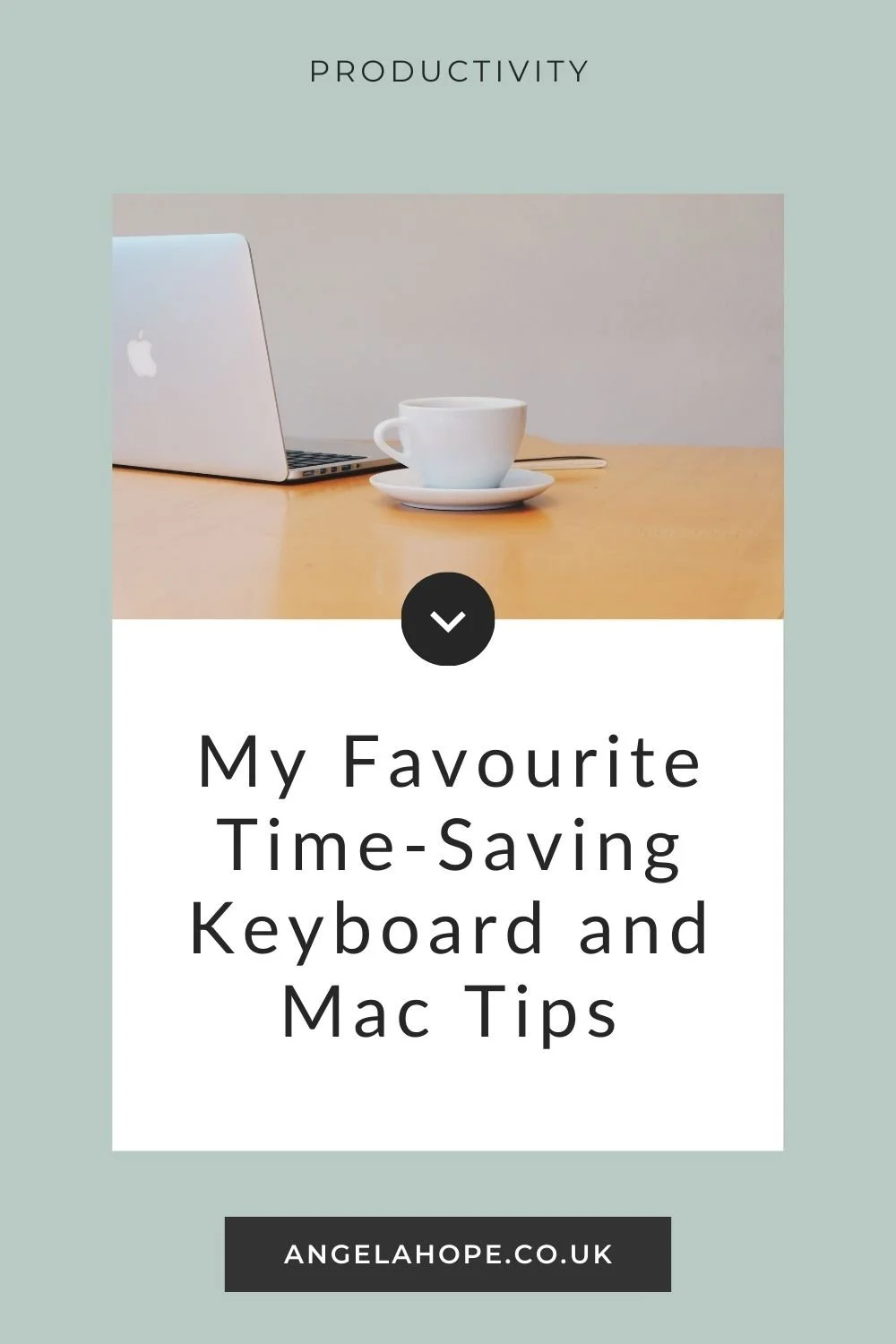
My Favourite Time-Saving Keyboard and Mac Tips

If you’ve worked with me before, you’ll know I’m always looking for ways to simplify the way we work with technology. Small tweaks to your workflow can make a surprising difference to how quickly and smoothly you get things done.
I’m also very much an Apple/Mac girl, so many of my favourite shortcuts live within the Apple ecosystem. The good news is that once you start using them, they quickly become second nature.
One important thing to remember: don’t try to learn dozens of shortcuts at once. That’s the fastest way to forget them all. Instead, introduce one or two that genuinely help with your day-to-day work. If they’re useful, you’ll naturally repeat them and they’ll start to stick.
Here are a few of the keyboard tricks and workflow habits I use regularly.
Cut and Paste Across Apple Devices
One of the things I love about working within the Apple ecosystem is how seamlessly devices work together.
With Apple’s Universal Clipboard, you can copy something on one device and paste it on another. For example, you might copy text on your Mac and then paste it straight into a message on your iPhone. It works with text, images and sometimes files too.
It might sound like a small thing, but it saves a surprising amount of time. Instead of emailing yourself information, sending links through messages, or using AirDrop for tiny snippets, you can simply copy and paste like you normally would.
If you regularly move between your Mac, iPad and iPhone during the day, this feature quickly becomes one of those little productivity boosters you rely on without even thinking about it.
Master Tabs in Google Chrome
If you spend a lot of time in your browser (and most of us do), learning a few tab shortcuts can make navigating the web much faster.
Some of the ones I use most often are:
Cmd + T – Open a new tab
Cmd + Shift + T – Reopen a tab you accidentally closed
Cmd + Option + Right/Left Arrow – Move between open tabs
That last one is particularly useful when you have multiple tabs open and need to quickly jump between them.
Another small tip is to pin tabs for websites you use constantly, such as your email, project management tool or Google Drive. Pinned tabs stay in place and are always easy to access without cluttering your browser window.
It’s a simple habit, but it makes your browser feel much more organised.
Use Line Breaks Instead of Paragraph Breaks
This is one of those tiny keyboard habits that makes writing emails, notes and documents much cleaner.
When you press Shift + Enter, it inserts a line break instead of creating a full new paragraph.
This is particularly helpful when you want to keep things visually compact. For example, when writing quick notes, adding short lists in emails, or spacing out lines without creating big gaps in the text.
Once you start using line breaks intentionally, you’ll notice how much easier your writing is to scan and read.
Organise Your Desktop with Mac Stacks
If your desktop has ever turned into a sea of screenshots, PDFs and random documents, you’re definitely not alone.
One of the easiest ways to tidy things up is by turning on Stacks.
Simply right-click on your desktop and select Use Stacks. Your files will automatically group together based on type, date or tags. Instead of dozens of individual icons, you’ll see neat stacks that expand when you click on them.
It’s a simple feature, but it instantly makes your desktop feel calmer and easier to navigate.
And if you regularly save files to your desktop while working (many of us do), this can stop things from getting out of hand very quickly.
A Few Handy Ctrl + Cmd Shortcuts
Some of the most useful Mac shortcuts combine the Control and Command keys. They’re not always obvious, but once you know them they can be incredibly handy.
One of my favourites is:
Ctrl + Cmd + Space
This opens the emoji and special characters keyboard wherever you’re typing. It works in emails, documents, notes, and many other apps.
If you ever find yourself digging through menus looking for a symbol or emoji, this shortcut makes it much quicker.
Two other useful ones are:
Ctrl + Cmd + Q – Instantly lock your screen
Ctrl + Cmd + F – Toggle full-screen mode in many apps
They’re simple shortcuts, but they can make everyday tasks just that little bit smoother.
Navigating Files More Quickly in Finder
If you work with lots of folders and files, Finder has a few shortcuts that can make navigation much faster.
One of the most useful is:
Cmd + Shift + G
This allows you to jump directly to a folder path. If you know where something lives, you can go straight there instead of clicking through multiple folders.
Another helpful one is:
Cmd + Option + Space
This opens a Finder search window instantly, making it easier to track down files without breaking your workflow.
Small Habits That Save Time
None of these tips are revolutionary on their own. But when you start combining them, they can make your workday feel much smoother.
The trick is not to overwhelm yourself with too many shortcuts at once. Pick one or two that feel genuinely helpful and start using them regularly. With a bit of repetition, they’ll quickly become part of your natural workflow.
Before long, you’ll find yourself working faster, clicking less, and spending less time hunting for things on your computer.
And that’s exactly the kind of fuss-free productivity I’m always aiming for.